Free Online Ruler
Measure anything on screen with pixel-perfect accuracy. Auto-detects your device and scales to real-world
dimensions — no installation needed.
search
Detecting device…
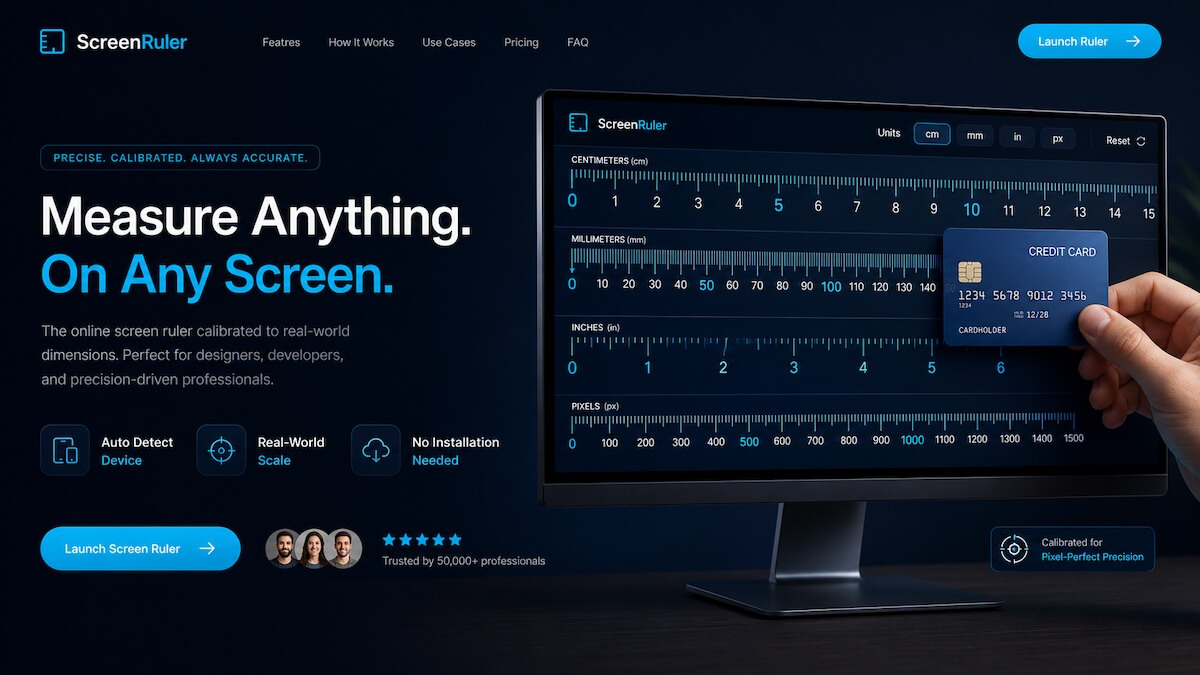
RulerMeasure turns your screen into a real, physical ruler — no app to install, no hardware needed. As
long as your screen is calibrated correctly, every centimetre and inch on screen matches the real world.
Why I Made This Ruler Measure Website?
When I made this Ruler website public, many people started asking me,
"Why did you build this website? There are already plenty of websites that do the same thing."
Let me clarify.
Yes, there are many websites that provide online ruler and measurement tools, and most of them do their
job quite well. However, I felt that many of those websites were lacking in terms of design, usability,
and overall user experience. Some were not very mobile-friendly, while others were cluttered and
difficult to use.
That's why I decided to create my own version. I found a suitable domain name, did some research on how
to build an online ruler, and got help where needed. Since I'm also a coder, I added my own ideas and
improvements throughout the development process.
The project itself was relatively straightforward, and I was able to build this website within a week.
My goal was not just to create another ruler website, but to build one that is clean, user-friendly,
mobile-friendly, and easy for anyone to use.
That is why I built this website, even though similar tools already exist. I wanted to offer a better
experience and make online measurements as simple and convenient as possible.
How to Use RulerMeasure.com
If you would like to learn how to use RulerMeasure.com, this guide will walk you through the process.
1. Calibrate Your Screen First
The first and most important step is calibrating your screen. If you skip this step, the ruler will not
be accurate. Calibration is necessary because the website needs to know your screen size so it can
correctly display measurements in inches or centimeters.
Select Device
There are several calibration options available. You can select your device from the list, such as a
MacBook, Android phone, tablet, or other supported devices. If your device is not listed, you can
manually enter your screen size.
Enter Device Size
You can either select your device from the list or manually enter your screen size for calibration.
Use a Credit Card or ATM Card
For the most accurate results, use the credit card calibration option. Credit cards, debit cards, and
ATM cards have standard dimensions, making them ideal for calibration.
Place your card against the on-screen reference and adjust the scale until the on-screen card matches
your physical card exactly. Once it matches, save the calibration settings.
After calibration is complete, the ruler will provide accurate measurements.
2. Choose Inches or Centimeters
Once the calibration is complete, you're ready to use the ruler.
If you want to switch from centimeters to inches, click the Inch button in the
top-right corner. The ruler will instantly change to display measurements in inches.
Additional Features
Fullscreen Mode
Click the Fullscreen button to make the ruler occupy your entire screen for a larger
viewing area.
Popup Mode
Click the Popup button to open the ruler in a separate window with fewer distractions.
Dark Mode
If you're using the website at night, click the Dark Mode button to switch to a darker
theme and reduce eye strain. You can switch back to light mode at any time.
Start Measuring
The website is designed to be simple and easy to use. The most important step is calibration. Once your
screen is calibrated correctly, all measurements will be accurate.
After that, simply place an object against your screen and measure its size in centimeters or inches.
The key number behind RulerMeasure is PPI (pixels per inch) — the density of pixels on
your screen. Every screen is different: a 24″ desktop monitor may have 92 PPI while a modern iPhone has
over 460 PPI at the hardware level. Without knowing your screen's PPI, an online ruler can't map pixels
to real-world millimetres.
Method 1 — Select Device Fastest
We maintain a database of hundreds of devices — iPhones, Android phones, MacBooks, Windows laptops,
iPads, and desktop monitors — each with their exact manufacturer PPI. Search for your model and the
ruler calibrates instantly with less than 1% error.
Method 2 — Screen Diagonal Universal
Every screen has a diagonal measurement in inches printed on its box or listed in its specs. Enter that
number, and RulerMeasure calculates your PPI from your screen resolution and diagonal — typically within
2% accuracy.
Method 3 — Credit Card Most Accurate
A standard ISO/IEC 7810 ID-1 credit card is exactly 85.60 × 53.98 mm worldwide — every Visa, Mastercard,
and bank card shares this size. Drag the slider until the on-screen rectangle perfectly matches your
card. This is a direct physical reference and the most accurate calibration method available, regardless
of your device.
How PPI is calculated
PPI = √(horizontal pixels² + vertical pixels²) ÷ diagonal in inches. For example, a 1920 × 1080 screen on
a 24″ monitor gives √(1920² + 1080²) ÷ 24 ≈ 91.8 PPI. RulerMeasure stores this value in your browser's
local storage and applies it every time you visit.
Saved automatically
Per-device storage
PPI range: 70–500
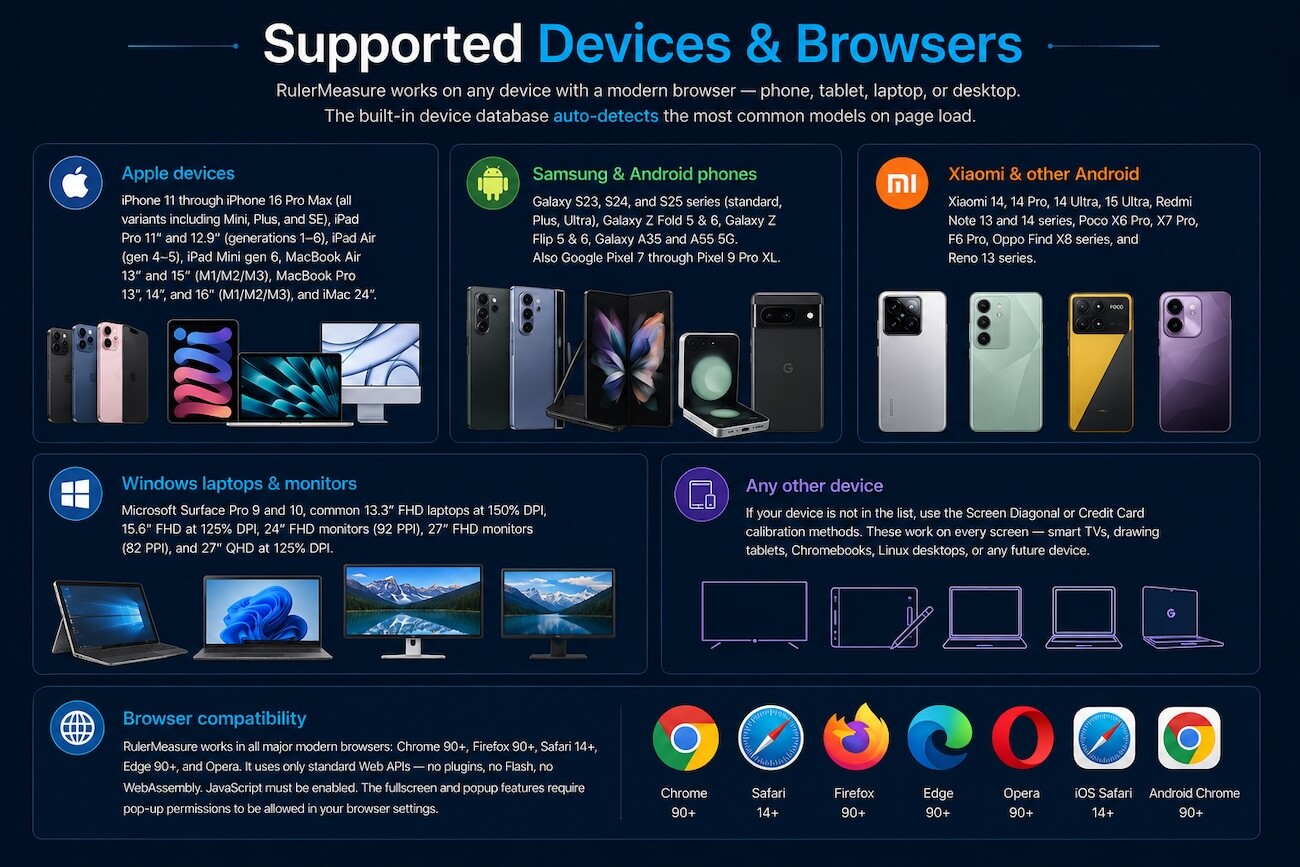
RulerMeasure works on any device with a modern browser — phone, tablet, laptop, or desktop. The built-in
device database auto-detects the most common models on page load.
Apple devices
iPhone 11 through iPhone 16 Pro Max (all variants including Mini, Plus, and SE), iPad Pro 11″ and 12.9″
(generations 1–6), iPad Air (gen 4–5), iPad Mini gen 6, MacBook Air 13″ and 15″ (M1/M2/M3), MacBook Pro
13″, 14″, and 16″ (M1/M2/M3), and iMac 24″.
Samsung & Android phones
Galaxy S23, S24, and S25 series (standard, Plus, Ultra), Galaxy Z Fold 5 & 6, Galaxy Z Flip 5 &
6, Galaxy A35 and A55 5G. Also Google Pixel 7 through Pixel 9 Pro XL.
Xiaomi & other Android
Xiaomi 14, 14 Pro, 14 Ultra, 15 Ultra, Redmi Note 13 and 14 series, Poco X6 Pro, X7 Pro, F6 Pro, Oppo
Find X8 series, and Reno 13 series.
Windows laptops & monitors
Microsoft Surface Pro 9 and 10, common 13.3″ FHD laptops at 150% DPI, 15.6″ FHD at 125% DPI, 24″ FHD
monitors (92 PPI), 27″ FHD monitors (82 PPI), and 27″ QHD at 125% DPI.
Any other device
If your device is not in the list, use the Screen Diagonal or Credit
Card calibration methods. These work on every screen — smart TVs, drawing tablets,
Chromebooks, Linux desktops, or any future device.
Browser compatibility
RulerMeasure works in all major modern browsers: Chrome 90+, Firefox 90+, Safari 14+, Edge 90+, and
Opera. It uses only standard Web APIs — no plugins, no Flash, no WebAssembly. JavaScript must be
enabled. The fullscreen and popup features require pop-up permissions to be allowed in your browser
settings.
Chrome
Safari
Firefox
Edge
Opera
iOS Safari
Android Chrome
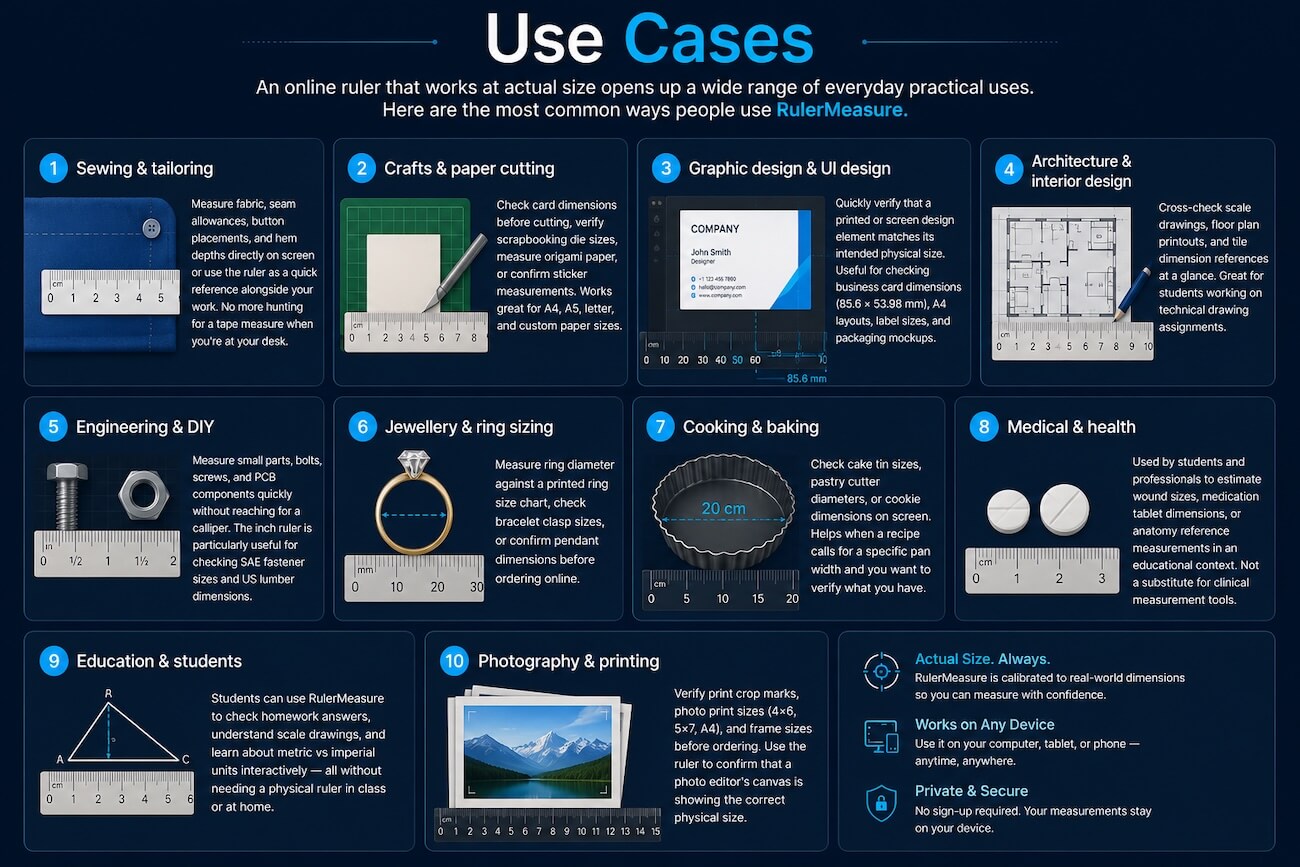
An online ruler that works at actual size opens up a wide range of everyday practical uses. Here are the
most common ways people use RulerMeasure.
Sewing & tailoring
Measure fabric, seam allowances, button placements, and hem depths directly on screen or use the ruler as
a quick reference alongside your work. No more hunting for a tape measure when you're at your desk.
Crafts & paper cutting
Check card dimensions before cutting, verify scrapbooking die sizes, measure origami paper, or confirm
sticker measurements. Works great for A4, A5, letter, and custom paper sizes.
Graphic design & UI design
Quickly verify that a printed or screen design element matches its intended physical size. Useful for
checking business card dimensions (85.6 × 53.98 mm), A4 layouts, label sizes, and packaging mockups.
Architecture & interior design
Cross-check scale drawings, floor plan printouts, and tile dimension references at a glance. Great for
students working on technical drawing assignments.
Engineering & DIY
Measure small parts, bolts, screws, and PCB components quickly without reaching for a calliper. The inch
ruler is particularly useful for checking SAE fastener sizes and US lumber dimensions.
Jewellery & ring sizing
Measure ring diameter against a printed ring size chart, check bracelet clasp sizes, or confirm pendant
dimensions before ordering online.
Cooking & baking
Check cake tin sizes, pastry cutter diameters, or cookie dimensions on screen. Helps when a recipe calls
for a specific pan width and you want to verify what you have.
Medical & health
Used by students and professionals to estimate wound sizes, medication tablet dimensions, or anatomy
reference measurements in an educational context. Not a substitute for clinical measurement tools.
Education & students
Students can use RulerMeasure to check homework answers, understand scale drawings, and learn about
metric vs imperial units interactively — all without needing a physical ruler in class or at home.
Photography & printing
Verify print crop marks, photo print sizes (4×6, 5×7, A4), and frame sizes before ordering. Use the ruler
to confirm that a photo editor's canvas is showing the correct physical size.
Sewing
Design
DIY
Education
Crafts
Photography
Cooking
Engineering
Get the most accurate reading
For maximum precision, calibrate using a physical credit card (Method 3) rather than relying on device
detection. Even within the same phone model, some units have slight panel variation from the
manufacturer spec.
Use fullscreen for measuring objects
Click Fullscreen before placing anything on your screen. This removes all browser UI and
shows both the horizontal and vertical ruler simultaneously, giving you more measuring room and a
cleaner reference surface.
The popup window trick
Click Popup to open the ruler in a narrow floating window. You can then resize this
window to be a thin horizontal strip and keep it above other applications — useful if you're designing
in Figma or Illustrator and need a live reference ruler alongside your canvas.
Measure at the correct angle
Always hold or place your object flat and parallel to the screen. Tilting introduces cosine error — a 10°
tilt makes a 100 mm object appear as 98.5 mm. For very precise measurements, tape the object flat.
Screen protectors can add parallax
Thick tempered glass screen protectors (especially 0.4 mm+) can cause a slight parallax shift when
reading at an angle. Look straight at the screen when reading measurements.
Recalibrate when switching monitors
If you use a laptop connected to an external monitor, remember to recalibrate when you move the browser
window to the other screen. Each physical display needs its own PPI value. Your saved calibration is
stored per browser tab, not per display.
Dark mode for low-light measuring
Switch to dark mode (top-right toggle) when measuring in dim lighting. The dark ruler background is
easier on the eyes and the amber tick marks remain clearly visible.
Use inches for US materials
If you're working with US lumber, paper (Letter/Legal), or hardware, switch to inches — fractions of an
inch are native to those standards and easier to cross-reference than converting from cm.
Is RulerMeasure accurate?
Yes — once calibrated, RulerMeasure is accurate to within 1–2% for most devices. The credit card
calibration method can achieve sub-1% accuracy because it uses a physical ISO standard reference.
Accuracy depends on your screen's actual PPI matching the value entered during calibration.
Does it work on mobile phones?
Yes. RulerMeasure works on iOS Safari and Android Chrome. Phone screens tend to be more precisely
manufactured than monitors, so device auto-detection is often very accurate on phones. The ruler runs
horizontally and vertically across the full screen in fullscreen mode.
Why does the ruler look wrong?
The most common cause is an uncalibrated screen. If you see a warning badge instead of a green "Detected"
status, click Calibrate and enter your screen size or credit card. Browser zoom level
can also affect the ruler — make sure your browser zoom is set to 100% (Ctrl+0 on Windows, Cmd+0 on
Mac).
Does it work without the internet?
Once the page has loaded, the ruler works entirely in your browser with no network connection required.
Your calibration is stored in local storage and does not require the internet to apply.
Why does "Popup" get blocked?
Browsers block pop-up windows by default as an anti-spam measure. To use the Popup ruler, allow pop-ups
for rulermeasure.com in your browser's site settings (usually accessible via the address bar or Settings
→ Privacy → Pop-ups).
Can I measure in millimetres?
The ruler currently displays in centimetres (with millimetre tick marks) and inches (with 1/16″ tick
marks). To measure in mm, simply read the cm value and multiply by 10 — for example, 4.5 cm = 45 mm.
My device isn't in the database
Use either the Screen Diagonal method (enter the diagonal from your device's spec sheet) or the Credit
Card method (physically drag the slider). Both work on any screen regardless of brand or model.
Does RulerMeasure store my data?
No. Your PPI calibration value is stored only in your browser's local storage on your device. No personal
data is sent to any server. See our Privacy Policy for full details.
Can I use this on a smart TV or large display?
Yes, as long as you can open a browser on the device. Use the Screen Diagonal method to calibrate — enter
the TV's advertised diagonal size. Note that very large screens (65″+) may have lower PPI and slightly
reduced precision, but the ruler will still reflect real-world sizes correctly.
Is there a mobile app?
RulerMeasure is a web app that works in any mobile browser — no installation needed. Simply visit rulermeasure.com in Safari or
Chrome on your phone. You can also add it to your home screen as a Progressive Web App shortcut.
Free forever
No account needed
No ads
Privacy-first
Open in any browser